

Hybrid public/private cloud
Seamless
Companies often do not exclusively use public cloud services such as Amazon Web Services (AWS) [1], Microsoft Azure [2], or Google Cloud [3]. Instead, they rely on a mix, known as a hybrid cloud. In this scenario, you connect your data centers (private cloud) with the resources of a public cloud provider. The term "private cloud" is somewhat misleading, in that the operation of many data centers has little to do with cloud-based working methods, but it looks like the name is here to stay.
The advantage of a hybrid cloud is that companies can use it to absorb peak loads or special requirements without having to procure new hardware for five- or six-digit figures.
In this article, I show how you can add a cloud extension to an Ansible [4] role that addresses local servers. To do this, you extend a local Playbook for an Elasticsearch cluster so that it can also be used in the cloud, and the resources disappear again after use.
Cloudy Servers
In classical data center operation, a server is typically used for a project and installed by an admin. It then runs through a life cycle in which it receives regular patches. At some point, it is no longer needed or is outdated. In the virtualized world, the same thing happens in principle, only with virtual servers. However, for performance reasons, you no longer necessarily retire them. With a few commands or clicks, you can simply assign more and faster resources.
Things are different in the cloud, where you have a service in mind. To operate it, you have to provide defined resources for a certain period of time, build these services in an automated process, to the extent possible (sometimes even from scratch), use them, and only pay the public cloud providers for the period of use. Then, you shut down the machines, reducing resource requirements to zero.
If these resources include virtual machines (VMs), you again build them automatically, use them, and delete them. The classic server life cycle is therefore irrelevant and is degraded to a component in an architecture that an admin brings to life at the push of a button.
Visible for Everyone?
One popular misconception about the use of public cloud services is that these services are "freely accessible on the Internet." This statement is not entirely true, because most cloud providers leave it to the admin to decide whether to provide a service or a VM with a publicly accessible IP address. Additionally, you usually have to activate explicitly all the services you want to be accessible from outside, although this usually does not apply to the services required for administration – that is, Secure Shell (SSH) for Linux VMs and the Remote Desktop Protocol (RDP) for Windows VMs. By way of an example, when an AWS admin picks a database from the Database-as-a-Service offerings, they can only access it through the IP address they use to control the AWS Console.
If you set up the virtual networks in the public cloud with private addresses only, they are just as invisible from the Internet as the servers in your own data center.
Cloudbnb
At AWS, but also in the Google and Microsoft clouds, for example, the concept of the virtual private cloud (VPC) acts as the account's backbone. With an AWS account in each region, you can even operate several VPC instances side by side.
To connect to this network, the cloud providers offer a site-to-site VPN service. Alternatively, you can set up your own VPN gateway (e.g., in the form of a VM, such as Linux with IPsec/OpenVPN) or a virtual firewall appliance, the latter of which offers a higher level of security, but usually comes at a price.
This service ultimately creates a structure, that, conceptually, does not differ fundamentally from the way in which you would connect branch offices to the head office – with one difference: The public cloud provider can potentially access the data on the machines and in the containers.
Protecting Data
The second major security concern relates to storing data. Especially when processing personal information for members of the European Union (EU), you have to be careful for legal reasons about which of the cloud provider's regions is used to store the data. Relocating the customer database to Japan might turn out to be a less than brilliant idea. Even if the data is stored on servers within the EU, the question of who gets access still needs to be clarified.
Encrypting data in AWS is possible [5]. If you do not have confidence in your abilities, you could equip a Linux VM with a self-encrypted volume (e.g., LUKS [6]) and not store the password on the server. With AWS, this does not work for system disks, but it does at least for data volumes. After starting the VM, you have to send the password. This process can be automated from your own data center. The only possible route of access for the provider is to read the machine RAM; this risk exists where modern hardware enables live encryption, as well.
As a last resort, you can ensure that the computing resources in the cloud only access data managed by the local data center. However, you will need a powerful Internet connection.
Solving a Problem
Assume you have a local Elasticsearch cluster of three nodes: a master node, which also houses Logstash and Kibana, and two data nodes with data on board (Figure 1).
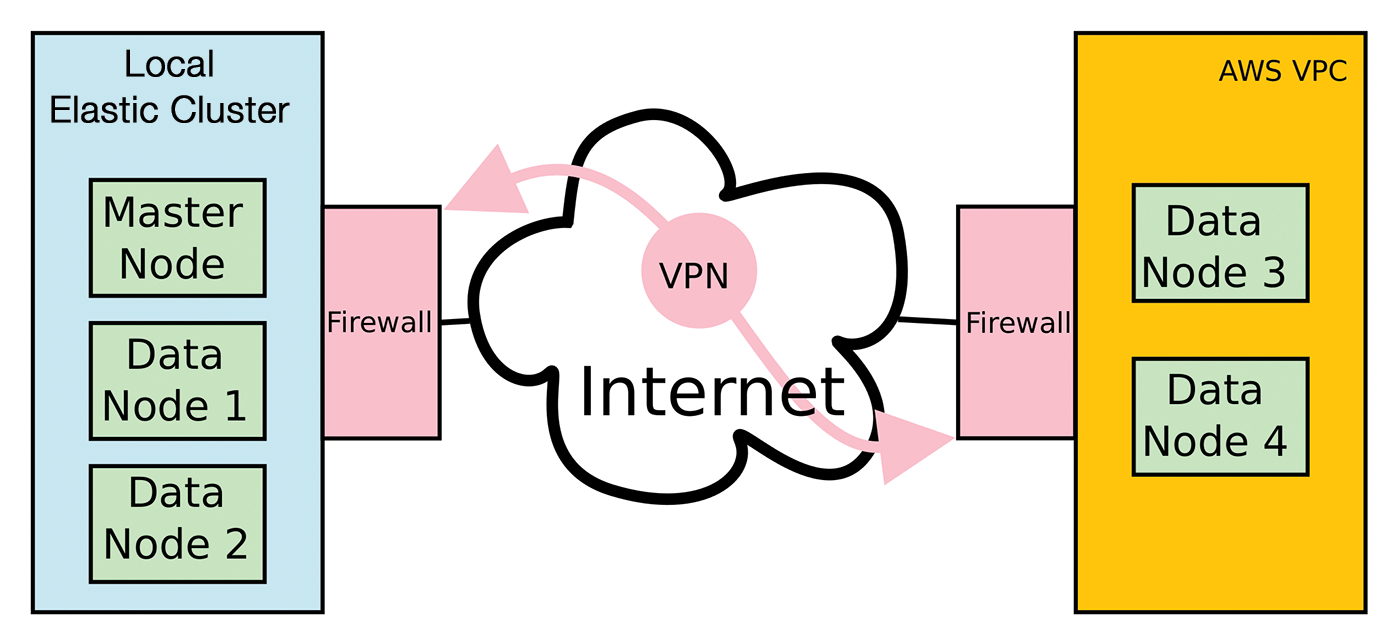
You now want to provide this cluster temporarily two more data nodes in the public cloud. You could have several reasons for this; for example, you might want to replace the physical data nodes because of hardware problems, or you might temporarily need higher performance for data analysis. Because it is not typically worthwhile to procure new hardware on a temporary basis, the public cloud is a solution. The logic is shown in Figure 1; the machines started there must become part of the Elastic cluster.
The following explanations assume you have already written Ansible roles for installing the Elasticsearch-Logstash-Kibana (ELK) cluster. You will find a listing for a Playbook on the ADMIN FTP site [7]. Thanks to the structure of these roles, you can add more nodes by appending parameters to the Hosts file, and it includes installing the software on the node.
The roles that Ansible calls are determined by the Hosts file (usually in /etc/ansible/hosts) and the variables set in it for each host. Listing 1 shows the original file.
Listing 1: ELK Stack Hosts File
10.0.2.25 ansible_ssh_user=root logstash=1 kibana=1 masternode=1 grafana=1 do_ela=1
10.0.2.26 ansible_ssh_user=root masternode=0 do_ela=1
10.0.2.44 ansible_ssh_user=root masternode=0 do_ela=1
Host 10.0.2.25 is the master node on which all software runs. The other two hosts are the data nodes of the cluster. The variable do_ela controls whether the Elasticsearch role can perform installations. When expanding the cluster, this ensures that Ansible does not reconfigure the existing nodes – but more about the details later.
Extending the Cluster in AWS
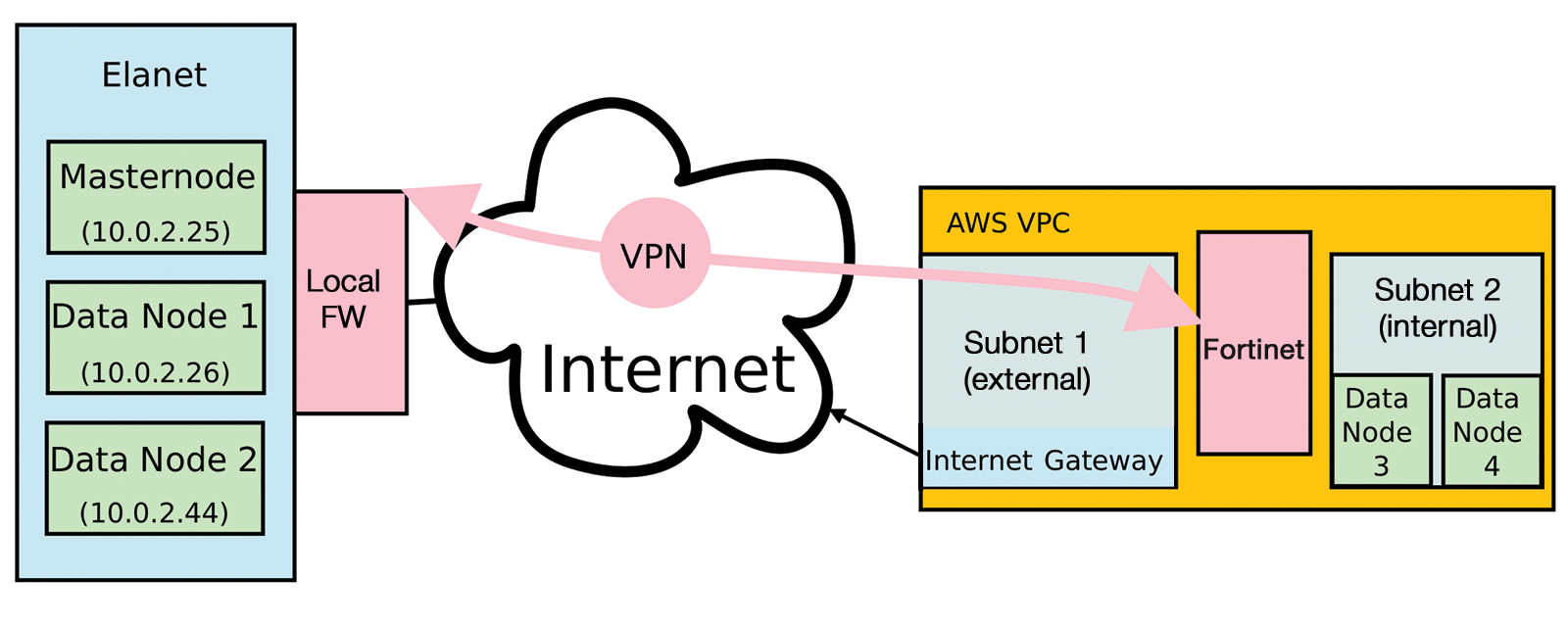
The virtual infrastructure in AWS comprises a VPC with two subnets. One subnet can be reached from the Internet; the other represents the internal area, which also contains the two servers on which data nodes 3 and 4 are to run. In between is a virtual firewall, by Fortinet in this case, that terminates the VPN tunnel and controls access with firewall rules.
This setup requires several configuration steps in AWS: You need to create the VPC with a main network. On this, you then assign all the subnets: one internal (inside) and one accessible from the Internet (outside). Then, you create an Internet gateway in the outside subnet. Through this, the data traffic migrating toward the Internet finds an exit from the cloud. For this purpose, you define a routing table for the outside subnet that specifies this Internet gateway as the standard route (Figure 2).
Cloud Firewall
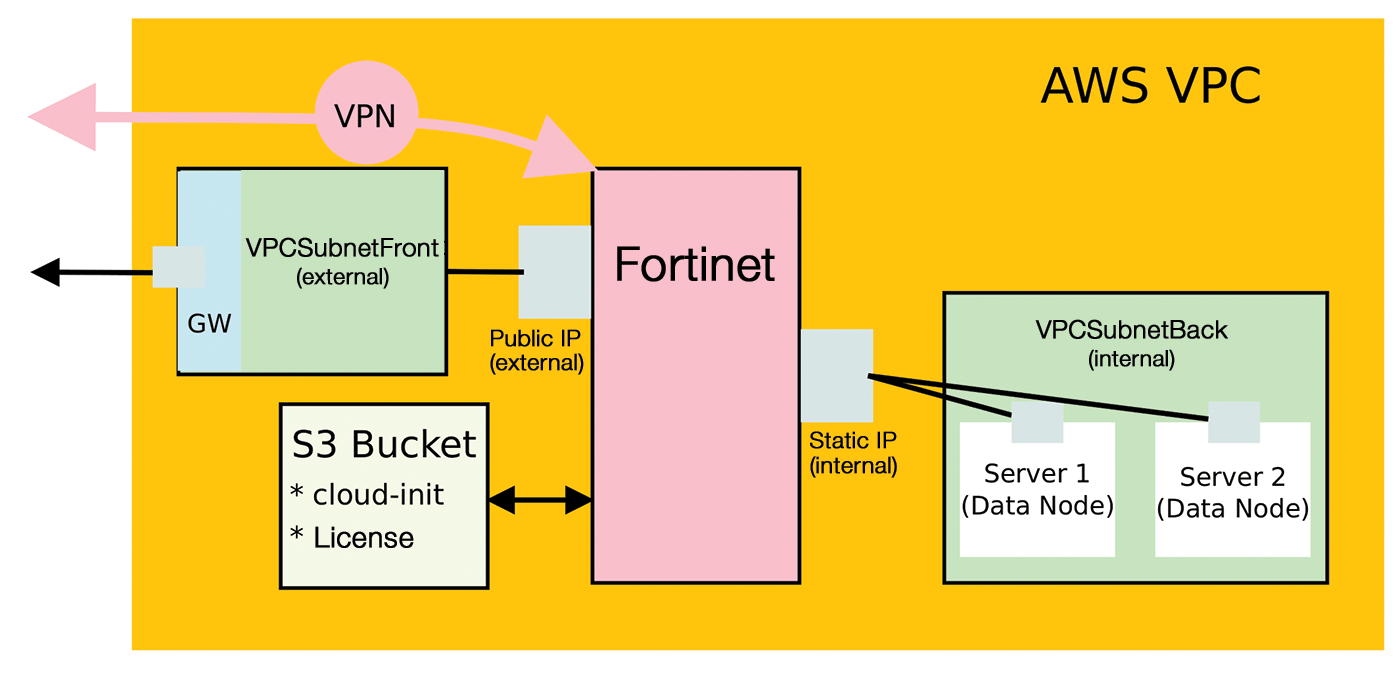
In the next step, you create a security group that comprises host-related firewall rules for AWS. Because the firewall can protect itself, the group opens the firewall for all incoming and outgoing traffic, although this could be restricted. The next step is to create an S3 bucket that contains the starting configuration and the license for the firewall. Next, you generate the config file for the firewall and upload it with the license. For a rented, but more expensive, firewall, this license information can also be omitted.
Now set up network interfaces for the firewall in the two subnets. Also, create a role that later allows the firewall instance to access the S3 bucket. Assign the network interfaces and the role to the firewall instance to be created, and link the subnets to the firewall. Create a routing table for the inside subnet and specify the firewall network card responsible for the inside network as the target; then, generate a public IP address and assign it to the outside network interface.
The next step is to set up a security group for the servers. To do this, first create two server instances on the inside subnet and change the inside firewall interface from a DHCP client to the static IP address that the AWS firewall has currently assigned to the card. Now set up a VPN tunnel from the local network into the AWS cloud. You need to define the rules and routes on the firewall on the local network. At the end of this configuration marathon, and assuming that all the new cloud servers can be reached, finally install and configure the Elastic stack on the two new AWS servers (Figure 3).
Cloud Shaping
In principle, Ansible would be able to perform all these tasks, but that would cause problems when cleaning up the ensemble in the cloud, at the latest. You would either have to save the information of the components created there locally, or you would have to search the Playbook for the components to be removed before the Playbook cleans them up.
A stack (similar to OpenStack) in which you describe the complete infrastructure, which can be parameterized in YAML or JSON format, is easier. Then, you build the stack with a call (also using Ansible) and clear it up with another call. The proprietary AWS technology for this is known as CloudFormation.
CloudFormation lets the stack receive a construction parameter: in this example, the IP addresses of the networks in the VPC. The author of the stack can also enter a return value, which is typically the external IP address of a generated object, so that the user of the stack knows how to use the cloud service.
Most VM images in AWS use cloud-init technology (please see the "cloud-init" box). Because CloudFormation can also provide cloud-init data to a VM, where do you draw the line between Ansible and CloudFormation? Where it is practicable and reduces the total overhead.
Fixed and Variable
The fixed components of the target infrastructure are the VMs (the firewall and the two servers for Elastic), the network structure, the routing structure, and the logic of the security groups. All of this information should definitely be included in the CloudFormation template.
The network's IP addresses, the AWS region, and the names of the objects are variable and used as parameters in the stack definition; you have to specify them when calling the stack. The variables also include the name of the S3 bucket for the cloud-init configuration of the firewall and the public SSH key stored with AWS, which is used to enable access to the Linux VMs.
Finally, you need the internal IP addresses of the Linux VMs, the external public IP address of the firewall, and the internal private IP address of the firewall for further configuration. Accordingly, these addresses pertain to the return values of the stack.
Ansible does all the work. It fills the variables, generates the firewall configuration, which the AWS firewall receives via cloud-init, and installs the software on the Linux VMs. Cloud-init could also install the software, but Ansible will set up exactly the roles that helped to configure the local servers at the beginning.
I developed the CloudFormation template from the version by firewall manufacturer Fortinet [8]. I simplified the structure, compared with their version on GitHub, so that the template in the cloud only raises a firewall and not a cluster. Additionally, the authors of the Fortinet template used a Lambda function to modify the firewall configuration. Here, this task is done by the Playbook, which in turn uses the template.
In the CloudFormation template, the process can be static. The two Linux VMs use CentOS as their operating system and should run on the internal subnet; you simply attach them to the template and the return values. Listings 2 through 4 show excerpts from the stack definition in YAML format. The complete YAML file can be downloaded from the ADMIN anonymous FTP site [7].
Listing 2: YAML Stack Definition Part 1
01 [...]
02 Resources:
03   FortiVPC:
04     Type: AWS::EC2::VPC
05     Properties:
06       CidrBlock:
07         Ref: VPCNet
08       Tags:
09         - Key: Name
10           Value:
11             Ref: VPCName
12
13   FortiVPCFrontNet:
14     Type: AWS::EC2::Subnet
15     Properties:
16       CidrBlock:
17         Ref: VPCSubnetFront
18       MapPublicIpOnLaunch: true
19       VpcId:
20         Ref: FortiVPC
21
22   FortiVPCBackNet:
23     Type: AWS::EC2::Subnet
24     Properties:
25       CidrBlock:
26         Ref: VPCSubnetBack
27       MapPublicIpOnLaunch: false
28       AvailabilityZone: !GetAtt FortiVPCFrontNet.AvailabilityZone
29       VpcId:
30         Ref: FortiVPC
31
32   FortiSecGroup:
33     Type: AWS::EC2::SecurityGroup
34     Properties:
35       GroupDescription: Group for FG
36       GroupName: fg
37       SecurityGroupEgress:
38         - IpProtocol: -1
39           CidrIp: 0.0.0.0/0
40       SecurityGroupIngress:
41         - IpProtocol: tcp
42           FromPort: 0
43           ToPort: 65535
44           CidrIp: 0.0.0.0/0
45         - IpProtocol: udp
46           FromPort: 0
47           ToPort: 65535
48           CidrIp: 0.0.0.0/0
49       VpcId:
50         Ref: FortiVPC
51
52   InstanceProfile:
53     Properties:
54       Path: /
55       Roles:
56         - Ref: InstanceRole
57     Type: AWS::IAM::InstanceProfile
58   InstanceRole:
59     Properties:
60       AssumeRolePolicyDocument:
61         Statement:
62           - Action:
63               - sts:AssumeRole
64             Effect: Allow
65             Principal:
66               Service:
67                 - ec2.amazonaws.com
68         Version: 2012-10-17
69       Path: /
70       Policies:
71         - PolicyDocument:
72             Statement:
73               - Action:
74                   - ec2:Describe*
75                   - ec2:AssociateAddress
76                   - ec2:AssignPrivateIpAddresses
77                   - ec2:UnassignPrivateIpAddresses
78                   - ec2:ReplaceRoute
79                   - s3:GetObject
80                 Effect: Allow
81                 Resource: '*'
82             Version: 2012-10-17
83           PolicyName: ApplicationPolicy
84     Type: AWS::IAM::Role
The objects of the AWS::EC2::Instance type are the VMs designed to extend the Elastic stack (Listings 3 and 4). Because of the firewall, the VM is more complex to configure; it has to have two dedicated interface objects so that routing can point to it (Listing 3, line 11).
Listing 3: YAML Stack Definition Part 2
01   FortiInstance:
02     Type: "AWS::EC2::Instance"
03     Properties:
04       IamInstanceProfile:
05         Ref: InstanceProfile
06       ImageId: "ami-06f4dce9c3ae2c504" # for eu-west-3 paris
07       InstanceType: t2.small
08       AvailabilityZone: !GetAtt FortiVPCFrontNet.AvailabilityZone
09       KeyName:
10         Ref: KeyName
11       NetworkInterfaces:
12         - DeviceIndex: 0
13           NetworkInterfaceId:
14             Ref: fgteni1
15         - DeviceIndex: 1
16           NetworkInterfaceId:
17             Ref: fgteni2
18       UserData:
19         Fn::Base64:
20           Fn::Join:
21             - ''
22             -
23               - "{\n"
24               - '"bucket"'
25               - ' : "'
26               - Ref: S3Bucketname
27               - '"'
28               - ",\n"
29               - '"region"'
30
31              - ' : '
32               - '"'
33               - Ref: S3Region
34               - '"'
35               - ",\n"
36               - '"license"'
37               - ' : '
38               - '"'
39               - /
40               - Ref: LicenseFileName
41               - '"'
42               - ",\n"
43               - '"config"'
44               - ' : '
45               - '"'
46               - /fg.txt
47               - '"'
48               - "\n"
49               - '}'
50
51   InternetGateway:
52     Type: AWS::EC2::InternetGateway
53
54   AttachGateway:
55     Properties:
56       InternetGatewayId:
57         Ref: InternetGateway
58       VpcId:
59         Ref: FortiVPC
60     Type: AWS::EC2::VPCGatewayAttachment
61
62   RouteTablePub:
63     Type: AWS::EC2::RouteTable
64     Properties:
65       VpcId:
66         Ref: FortiVPC
67
68   DefRoutePub:
69     DependsOn: AttachGateway
70     Properties:
71       DestinationCidrBlock: 0.0.0.0/0
72       GatewayId:
73         Ref: InternetGateway
74       RouteTableId:
75         Ref: RouteTablePub
76     Type: AWS::EC2::Route
77
78   RouteTablePriv:
79     [...]
80
81   DefRoutePriv:
82     [...]
83
84   SubnetRouteTableAssociationPub:
85     Properties:
86       RouteTableId:
87         Ref: RouteTablePub
88       SubnetId:
89         Ref: FortiVPCFrontNet
90     Type: AWS::EC2::SubnetRouteTableAssociation
91
92   SubnetRouteTableAssociationPriv:
93     [...]
Importantly, the firewall instance and both generated interfaces are located in the same availability zone; otherwise, the stack will fail. To this end, the VMs contain descriptions, and the second subnet contains the reference to the availability zone of the first subnet.
The UserData part of the firewall instance (Listing 3, line 18) contains a description file that tells the VM where to find the configuration and license file previously uploaded by Ansible.
The network configuration has already been described and is defined at the top of Listing 2. The finished template can now be run at the command line with the
aws cloudformation create-stack
Listing 4: YAML Stack Definition Part 3
01 [...]
02   ServerInstance:
03     Type: "AWS::EC2::Instance"
04     Properties:
05       ImageId: "ami-0e1ab783dc9489f34" # Centos7 for paris
06       InstanceType: t3.2xlarge
07       AvailabilityZone: !GetAtt FortiVPCFrontNet.AvailabilityZone
08       KeyName:
09         Ref: KeyName
10       SubnetId:
11         Ref: FortiVPCBackNet
12       SecurityGroupIds:
13         - !Ref ServerSecGroup
14
15   Server2Instance:
16     Type: "AWS::EC2::Instance"
17     Properties:
18       ImageId: "ami-0e1ab783dc9489f34" # Centos7 for paris
19       [...]
command, which specifies the name of the YAML file created and fills the parameters at the beginning of the stack. The S3 bucket you want to pass in must already exist. Both the license and the generated configuration should be uploaded up front. All these tasks are done by the Ansible Playbook, as shown in Listings 5 through 9.
The Playbook uses multiple "plays." The first (Listing 5) creates the configuration for the firewall and, if not available, the S3 bucket (line 20) as described and uploads it together with the license.
Listing 5: Ansible Playbook Part 1
01 ---
02 - name: Create VDC in AWS with fortigate as front
03   hosts: localhost
04   connection: local
05   gather_facts: no
06   vars:
07     region: eu-west-3
08     licensefile: license.lic
09     wholenet: 10.100.0.0/16
10     frontnet: 10.100.254.0/28
11     netmaskback: 17
12     backnet: "10.100.0.0/{{ netmaskback }}"
13     lnet: 10.0.2.0/24
14     rnet: "{{ backnet }}"
15     s3name: stackdata
16     keyname: mgtkey
17     fgtpw: Firewall-Passwort
18
19   tasks:
20     - name: Create S3 Bucket for data
21       aws_s3:
22         bucket: "{{ s3name }}"
23         region: "{{ region }}"
24         mode: create
25         permission: public-read
26       register: s3bucket
27
28     - name: Upload License
29       aws_s3:
30         bucket: "{{ s3name }}"
31         region: "{{ region }}"
32         overwrite: different
33         object: "/{{ licensefile }}"
34         src: "{{ licensefile }}"
35         mode: put
36
37     - name: Generate Config
38       template:
39         src: awsforti-template.conf.j2
40         dest: fg.txt
41
42     - name: Upload Config
43       aws_s3:
44         bucket: "{{ s3name }}"
45         region: "{{ region }}"
46         overwrite: different
47         object: "/fg.txt"
48         src: "fg.txt"
49         mode: put
50 [...]
The next task creates the complete stack (Listing 6). What's new is the connection to the old Elasticsearch Playbook or Hosts file. The latter has a group named elahosts, which adds the IP addresses of the two new servers to the Playbook so that a total of five hosts are in the list for further execution of the Playbook. However, some operations will only take place on the new hosts. Listing 6 (lines 44 and 49) creates the newhosts group, to which it adds the two hosts.
Listing 6: Ansible Playbook Part 2
01 [...]
02     - name: Create Stack
03       cloudformation:
04         stack_name: VPCFG
05         state: present
06         region: "{{ region }}"
07         template: fortistack.yml
08         template_parameters:
09           InstanceType: c5.large
10           FGUserName: admin
11           KeyName: "{{ keyname }}"
12           VPCName: VDCVPC
13           VPCNet: "{{ wholenet }}"
14           Kubnet: "{{ lnet }}"
15           VPCSubnetFront: "{{ frontnet }}"
16           VPCSubnetBack: "{{ backnet }}"
17           S3Bucketname: "{{ s3name }}"
18           LicenseFileName: "{{ licensefile }}"
19           S3Region: "{{ region }}"
20       register: stackinfo
21
22     - name: Print Results
23     [...]
24
25     - name: Wait for VM to be up
26     [...]
27
28     - name: New Group
29       add_host:
30         groupname: fg
31         hostname: "{{ stackinfo.stack_outputs.FortiGatepubIp }}"
32
33     - name: Add ElaGroup1
34       add_host:
35         groupname: elahosts
36         hostname: "{{ stackinfo.stack_outputs.Server1Address }}"
37
38     - name: Add ElaGroup2
39       add_host:
40         groupname: elahosts
41         hostname: "{{ stackinfo.stack_outputs.Server2Address }}"
42
43     - name: Add NewGroup1
44       add_host:
45         groupname: newhosts
46         hostname: "{{ stackinfo.stack_outputs.Server1Address }}"
47
48     - name: Add NewGroup2
49       add_host:
50         groupname: newhosts
51         hostname: "{{ stackinfo.stack_outputs.Server2Address }}"
52
53     - name: Set Fact
54       set_fact:
55         netmaskback: "{{ netmaskback }}"
56
57     - name: Set Fact
58       set_fact:
59         fgtpw: "{{ fgtpw }}"
60 [...]
The next play (Listing 7) configures the firewall. In its existing configuration, the static IP address for the inside network card is missing – AWS only sets this when creating the instance. Because the data is now known, the Playbook can define the IP address.
Listing 7: Ansible Playbook Part 3
01 [...]
02 - name: ChangePW
03   hosts: fg
04   vars:
05     ansible_user: admin
06     ansible_ssh_common_args: -o StrictHostKeyChecking=no
07     ansible_ssh_pass: "{{ hostvars['localhost'].stackinfo.stack_outputs.FortiGateId }}"
08   gather_facts: no
09
10   tasks:
11     - raw: |
12         "{{ hostvars['localhost'].fgtpw }}"
13         "{{ hostvars['localhost'].fgtpw }}"
14         config system interface
15           edit port2
16             set mode static
17             set ip "{{ hostvars['localhost'].stackinfo.stack_outputs.FGIntAddress }}/17"
18           next
19         end
20       tags: pw
21     - name: Wait for License Reboot
22       pause:
23         minutes: 1
24
25     - name: Wait for VM to be up
26       wait_for:
27         host: "{{ inventory_hostname }}"
28         port: 22
29         state: started
30       delegate_to: localhost
31 [...]
When logging in to the firewall for the first time, the firewall requires a password change. You can use several methods to set up Fortigate in Ansible. However, the FortiOS network modules that have been included in the Ansible distribution for a while do not yet work properly. The raw approach is used here (Listing 7, line 10), which pushes the commands onto the device, as on the command line.
The first two lines of the raw task set the password, which resides on the instance ID in the AWS version. Because the license has already been installed, the firewall reboots after installation. At the end, the Ansible script in Listing 7 waits for the reboot to occur and then for it to reach the firewall again.
A play now follows that teaches the local firewall what the VPN tunnel to the firewall looks like in AWS (Listing 8). The VPN definition at the other end was in the previously uploaded configuration. Because of the described problems with the Ansible modules for FortiOS (I suspect incompatibilities between Ansible modules and the Python fosapi), the play uses Ansible's URI method to configure the firewall. Authentication for the API requires a login process; it then returns a token that is used in the following REST calls.
Listing 8: Ansible Playbook Part 4
01 [...]
02 - name: Local Firewall Config
03   hosts: localhost
04   connection: local
05   gather_facts: no
06   vars:
07     localfw: 10.0.2.90
08     localadmin: admin
09     localpw: ""
10     vdom: root
11     lnet: 10.0.2.0/24
12     rnet: 10.100.0.0/17
13     remotefw: "{{ stackinfo.stack_outputs.FortiGatepubIp }}"
14     localinterface: port1
15     psk: "<Password>"
16     vpnname: elavpn
17
18   tasks:
19
20     - name: Get the token with uri
21       uri:
22         url: https://{{ localfw }}/logincheck
23         method: POST
24         validate_certs: no
25         body: "ajax=1&username={{ localadmin }}&password={{ localpw }}"
26       register: uriresult
27       tags: gettoken
28
29     - name: Get Token out
30       set_fact:
31         token: "{{
32  uriresult.cookies['ccsrftoken'] | regex_replace('\"', '') }}"
33
34     - debug: msg="{{ token }}"
35
36     - name: Phase1 old Style
37       uri:
38         url: https://{{ localfw }}/api/v2/cmdb/vpn.ipsec/phase1-interface
39         validate_certs: no
40         method: POST
41         headers:
42           X-CSRFTOKEN: "{{ token }}"
43           Cookie: "{{ uriresult.set_cookie }}"
44         body: "{{ lookup('template', 'forti-phase1.j2') }}"
45         body_format: json
46       register: answer
47       tags: phase1
48
49     - name: Phase2 old style
50       uri:
51         url: https://{{ localfw }}/api/v2/cmdb/vpn.ipsec/phase2-interface
52         validate_certs: no
53         method: POST
54         headers:
55           X-CSRFTOKEN: "{{ token }}"
56           Cookie: "{{ uriresult.set_cookie }}"
57         body: "{{ lookup('template', 'forti-phase2.j2') }}"
58         body_format: json
59       register: answer
60       tags: phase2
61
62     - name: Route old style
63     [...]
64
65     - name: Local Object Old Style
66     [...]
67
68     - name: Remote Object Old Stlye
69     [...]
70
71     - name: FW-Rule-In old style
72       uri:
73         url: https://{{ localfw }}/api/v2/cmdb/firewall/policy
74         validate_certs: no
75         method: POST
76         headers:
77           Cookie: "{{ uriresult.set_cookie }}"
78           X-CSRFTOKEN: "{{ token }}"
79         body:
80         [...]
81         body_format: json
82       register: answer
83       tags: rulein
84
85     - name: FW-Rule-out old style
86       uri:
87         url: https://{{ localfw }}/api/v2/cmdb/firewall/policy
88         validate_certs: no
89         method: POST
90         headers:
91           Cookie: "{{ uriresult.set_cookie }}"
92           X-CSRFTOKEN: "{{ token }}"
93         body:
94         [...]
95         body_format: json
96       register: answer
97       tags: ruleout
98 [...]
The configuration initially consists of the key exchange phase1 and phase2 parameters. The phase1 parameter contains the password, crypto parameters, and IP address of the firewall in AWS. The phase2 parameter also provides crypto parameters and data for the local and remote networks. The configuration also provides a route (line 62) that passes the network on the AWS side to the VPN tunnel, and two firewall rules that allow traffic from and to the private network on the AWS side (lines 71 and 85).
A bit further down (Listing 9), the Playbook sets the do_ela parameter to 1 for the new hosts so that this role will also install Elasticsearch later. It uses 0 as the value for masternode, because the new hosts are data nodes. Because it usually takes some time for the VPN connection to be ready for use, the play now waits for the master node of the Elastic cluster until it can reach a new node via SSH.
Listing 9: Ansible Playbook Part 5
01 [...]
02 - name: Set Facts for new hosts
03   hosts: newhosts
04   [...]
05         masternode: 0
06         do_ela: 1
07
08 - name: Wait For VPN Tunnel
09   hosts: 10.0.2.25
10   [...]
11
12 - name: Install elastic
13   hosts: elahosts
14   vars:
15     elaversion: 6
16     eladatapath: /elkdata
17     ansible_ssh_common_args: -o StrictHostKeyChecking=no
18
19   tasks:
20
21   - ini_file:
22       path: /etc/yum.conf
23       section: main
24       option: ip_resolve
25       value: 4
26     become: yes
27     become_method: sudo
28     when: do_ela == 1
29     name: Change yum.conf
30
31   - yum:
32       name: "*"
33       state: "latest"
34     name: RHUpdates
35     become: yes
36     become_method: sudo
37     when: do_ela == 1
38
39   - include_role:
40       name: matrix.centos-elasticcluster
41     vars:
42       clustername: matrixlog
43       elaversion: 6
44     when: do_ela == 1
45
46   - name: Set Permissions for data
47     file:
48       path: "{{ eladatapath  }}"
49       owner: elasticsearch
50       group: elasticsearch
51       state: directory
52       mode: "4750"
53     become: yes
54     become_method: sudo
55     when: do_ela == 1
56
57   - systemd:
58       name: elasticsearch
59       state: restarted
60     become: yes
61     become_method: sudo
62     when: do_ela == 1
The last piece of the Playbook finally installs Elasticsearch on the new node and adapts its configuration to match the existing cluster. The role takes the major version of Elasticsearch as a parameter and a path in which the Elasticsearch server can store the data, which allows you to insert a separate mount point on a data-only disk.
Within AWS, all systems are prepared for IPv6, but this does not apply to the configuration used here. Therefore, the first task forces you to switch to IPv4. The second one updates the configuration of the system. In the third task, the Elastic cluster role finally installs and configures the software.
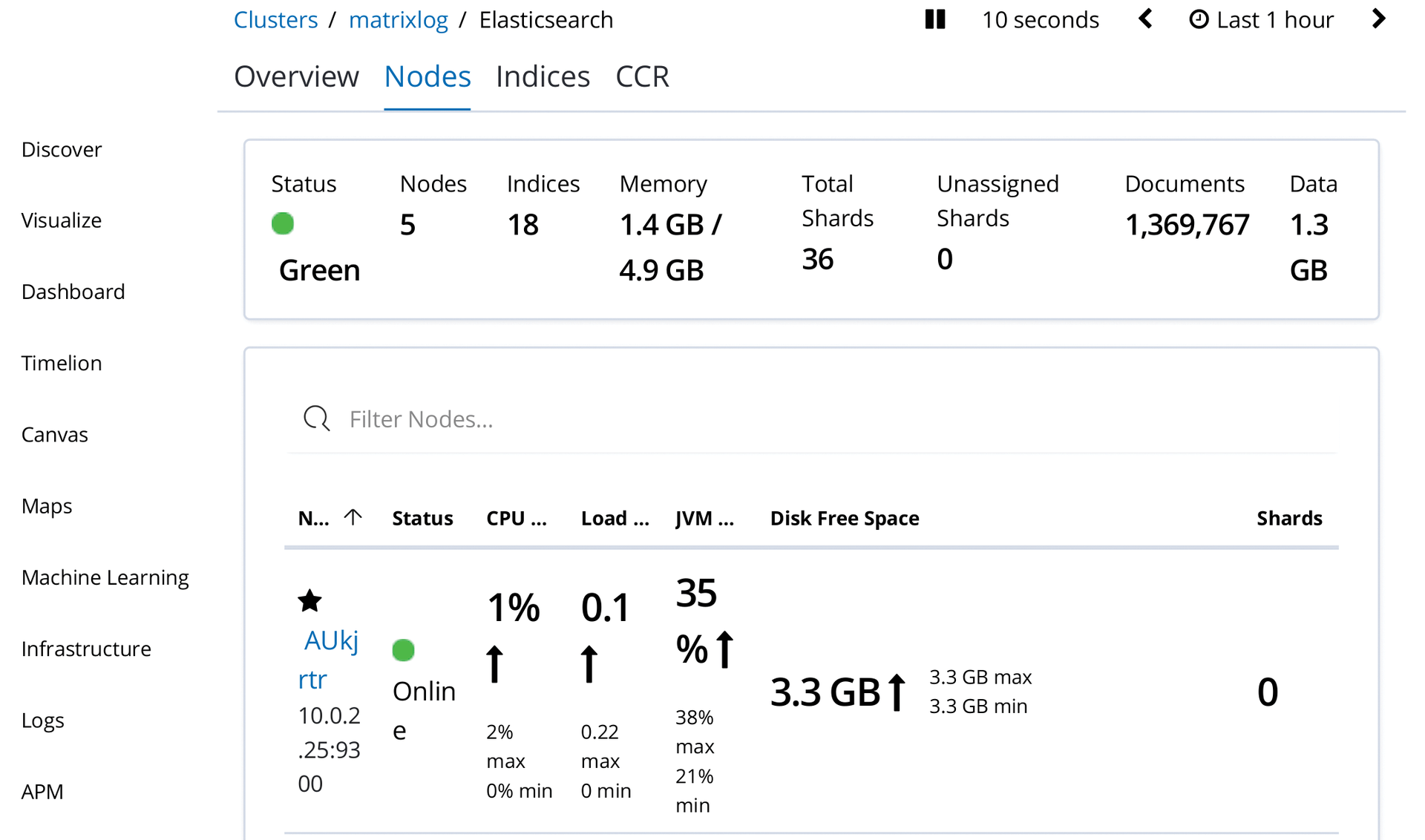
Because Ansible only creates the Elasticsearch user to which the elkdata/ folder should belong during the installation, the script also has to tweak the permissions and restart Elasticsearch (starting in line 46). This completes the cloud expansion. If everything worked out, the Kibana console will be presented with the view from Figure 4 after a few moments.
Big Cleanup
If you want to remove the extension, you have to remove the nodes from the cluster with an API call:
curl -X PUT 10.0.2.25:9200/_cluster/settings -H 'Content-Type: application/json' -d '{"transient" : {"cluster.routing.allocation.exclude._ip":"10.100.68.139" } }'
This command blocks further assignments and causes the cluster to move all shards away from this node. After the action, no more shards are assigned, and you can simply switch off the node.
Conclusion
The hybrid cloud thrives, because admins can transfer scripts and Playbooks seamlessly from their environment to the cloud world. Although higher quality cloud services exist than those covered in this article (AWS also has Elasticsearch as a Service), these services typically have only limited suitability for direct docking. To use them, you would have to take into account configuring the peculiarities of the respective cloud provider. With VMs in Microsoft Azure, however, the example shown here would work directly, so the user would only have to replace the CloudFormation part with an Azure template.